 Rydop
How to delete photos from your iPhone but not from iCloud
While iCloud Photos is on, you can't: a photo you delete on the iPhone is deleted in iCloud and on your other devices as well. There are two ways around it. Turn on Optimize Storage, and the iPhone keeps small versions while the originals stay in iCloud. Or stop syncing this iPhone and choose Remove from iPhone. The photos then leave the phone and stay in iCloud.
Why deleting on the iPhone deletes in iCloud
iCloud Photos isn't a backup. It's one library that every device shows. That's why an edit on the iPhone shows up on the Mac, and why a deletion counts everywhere. Apple puts it plainly: when you delete photos and videos on one device, they're deleted everywhere you use iCloud Photos. Apple's guide
What each choice does
Delete in Photos
With iCloud Photos on, the photo goes from the iPhone, from iCloud and from your other devices.
Optimize Storage
The iPhone keeps small versions. The originals stay in iCloud.
Stop syncing, Remove from iPhone
The photos leave this iPhone. iCloud and your other devices keep them.
Option 1: Optimize Storage (keep syncing)
Best if the real problem is a full iPhone. Nothing is deleted, and new photos keep uploading.
- Go to Settings, tap your name, then iCloud.
- Under Saved to iCloud, tap Photos.
- Tap iPhone Storage and choose Optimize Storage. In iOS 26 and earlier, just choose Optimize Storage.
The iPhone then swaps the originals for smaller versions when it needs space, starting with the photos you look at least. Open a photo and the full version downloads from iCloud. You won't see the space come back at once: iOS frees it as storage runs low.
Option 2: Stop syncing this iPhone, then remove the photos
Best if you want the photos off this iPhone altogether. They stay in iCloud and on your other devices.
- First check that everything has uploaded. In Photos, tap Collections, then the profile button at the top. It shows whether the library is up to date.
- Go to Settings, tap your name, then iCloud. Under Saved to iCloud, tap Photos.
- Turn off Sync this iPhone.
- Choose Remove from iPhone. (Download Photos & Videos does the opposite: it keeps a copy on the phone.)
From now on, what you shoot or delete on this iPhone affects only this iPhone. New photos no longer go to iCloud, so they need another backup. Apple's guide
The button that does delete everything
Under Settings › [your name] › iCloud › Storage › iCloud Photos there's Turn Off and Delete Photos. That's not the one you need here. It turns off iCloud Photos for your whole account, and 30 days later the photos are deleted from iCloud. Leave it alone unless that's what you want.
Copy them somewhere else first
If you'd rather have the photos outside iCloud entirely, make a copy before you delete anything: download the originals to a Mac or PC, or upload them to another photo service, and check that the copy is complete. Only then delete them on the iPhone. With iCloud Photos on, that deletes them in iCloud too, which is the point.
Free space without deleting the photos you love
A lot of what fills a library is stuff you don't want anywhere: the same shot three times, screenshots from last year, a twelve-minute video of the floor. Delete that and you free space on the iPhone and in iCloud at once.
Rydop finds that stuff on the iPhone itself, without uploading anything. It deletes through Photos, so with iCloud Photos on, what you delete in Rydop is deleted in iCloud too. iOS asks you to confirm every time. Rydop costs $1.99 once, with no subscription. See also how to free up space on iPhone.
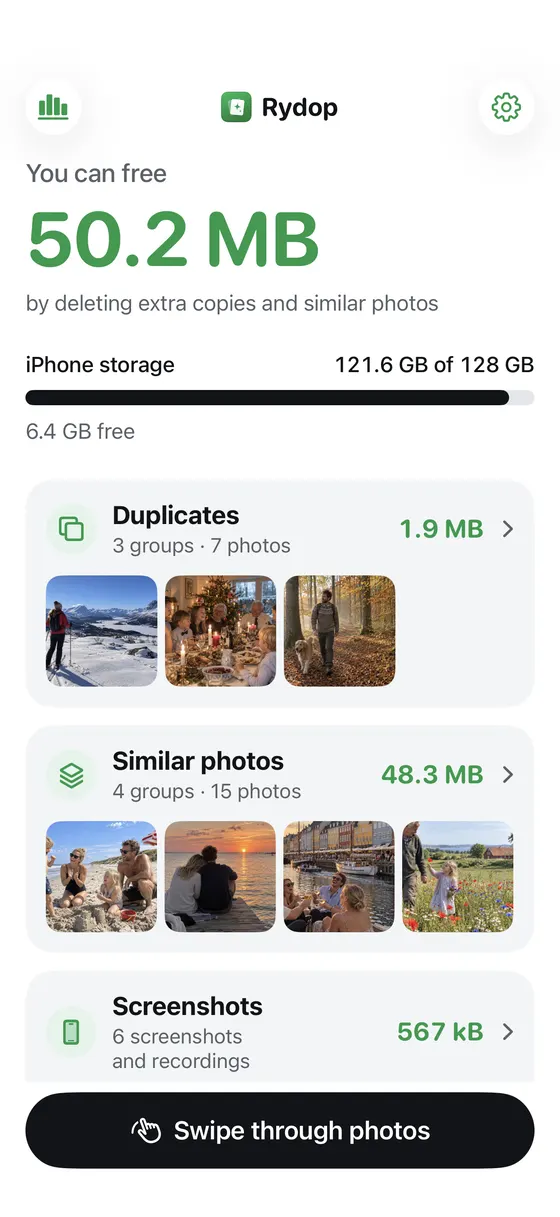 1What you can free2Duplicates and similar shots
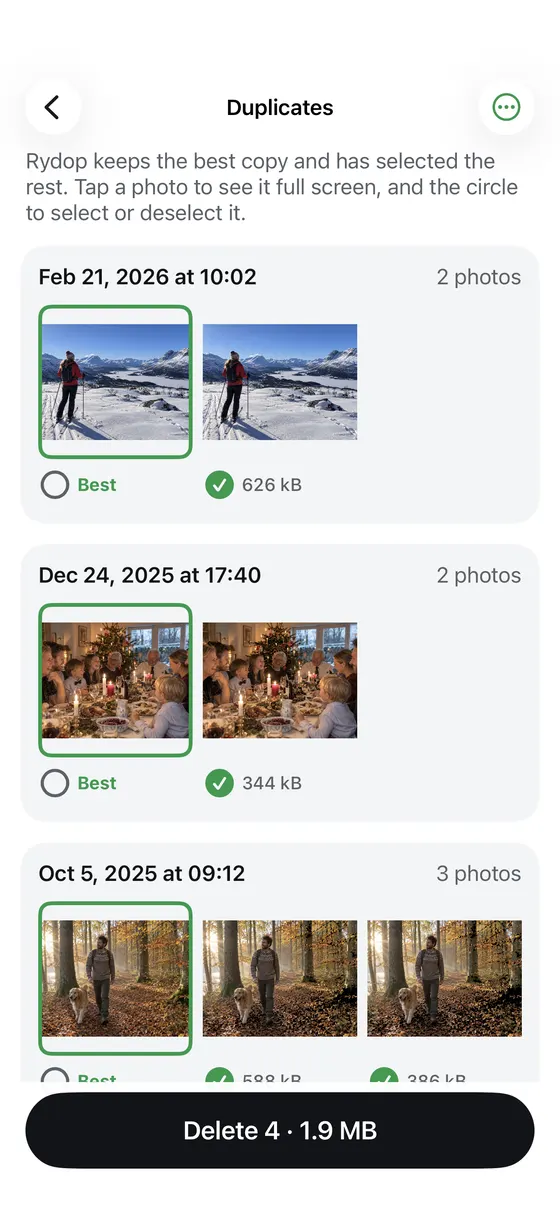 3Best copy kept4Delete the rest in one go
- What you can free
- Duplicates and similar shots
- Best copy kept
- Delete the rest in one go